What is a GIF or Graphics Interchange Format?
(Placeholder for information about inventor at CompuServe, why it was invented
And how am I supposed to pronounce it?
While the common pronunciation today is GIF with a Hard “G” sound, the inventor at CompuServe wanted it to be pronounced “GIF” with a Soft “G” sound, because he wanted it to remind people of “JIF” peanut butter!
How to Create a GIF in Photoshop
Or how to create a brief, silent, looping sequence of stills that MOVES.
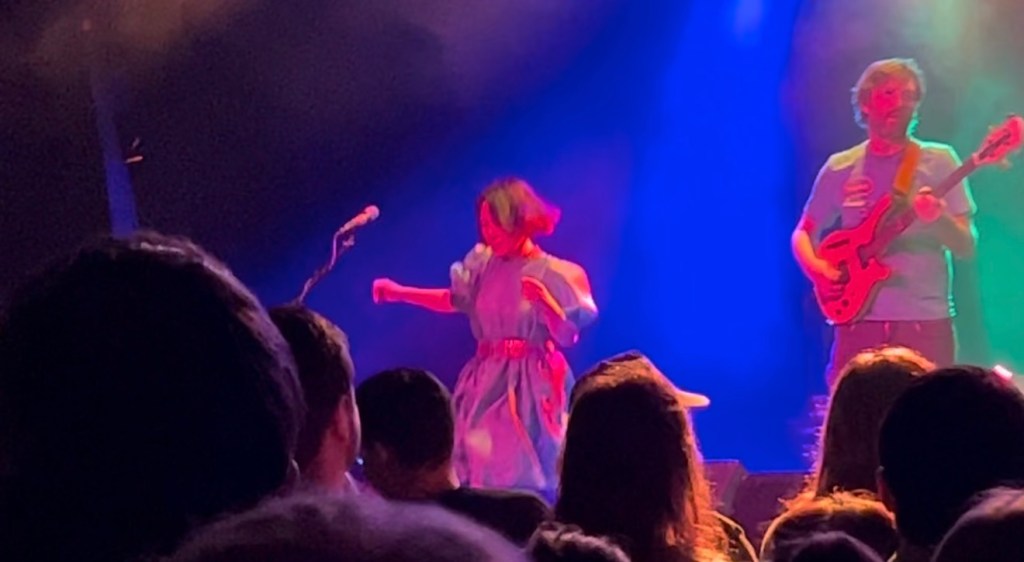
- Collect your images and place in a folder on your desktop. For this example, I used about a 10 second clip of video and saved it to a Folder named “Pachyman GIF” (after the artist portrayed.)
- Open up Photoshop.
- Click on Open Desktop App in upper right.
- Go To: FILE/Default Photoshop Size/CREATE
- Look below project window and it should say “Create Frame Animation”. (Placeholder for Table – “IF NOT”)
- Go To: FILE/IMPORT/VIDEO FRAMES TO LAYERS.
- Select your Video from your desktop folder and Click “OK” Your screen should look like this: <img src=”https://moveanima.com/wp-content/uploads/2026/04/layers-1.jpg”width=400
- PLAY with your individual frames that are now individual layers!
- For my example, every few frames I clicked on a frame to load it into the editor, CLICKED on it and then CLICKED “Remove Background”. This will remove some of the background leaving a white grid. It looks like this
<img src=”https://moveanima.com/wp-content/uploads/2026/04/img_1618-2.jpg”width=400class=”wrap-left”


 move anima

